

A quiet chat doesn’t mean no one’s watching — it means no one knows how to join the fun.
Stream alerts and chat commands are the pulse that keeps your stream alive. They make every viewer feel noticed in real time, turning a silent audience into an active community.
In this guide, you’ll learn how to use alerts, commands, and automation to keep your stream’s energy flowing — from quick reactions that make viewers smile to chat tools that invite them to join in.
Step 1 — Why Interaction Matters More Than Follower Count
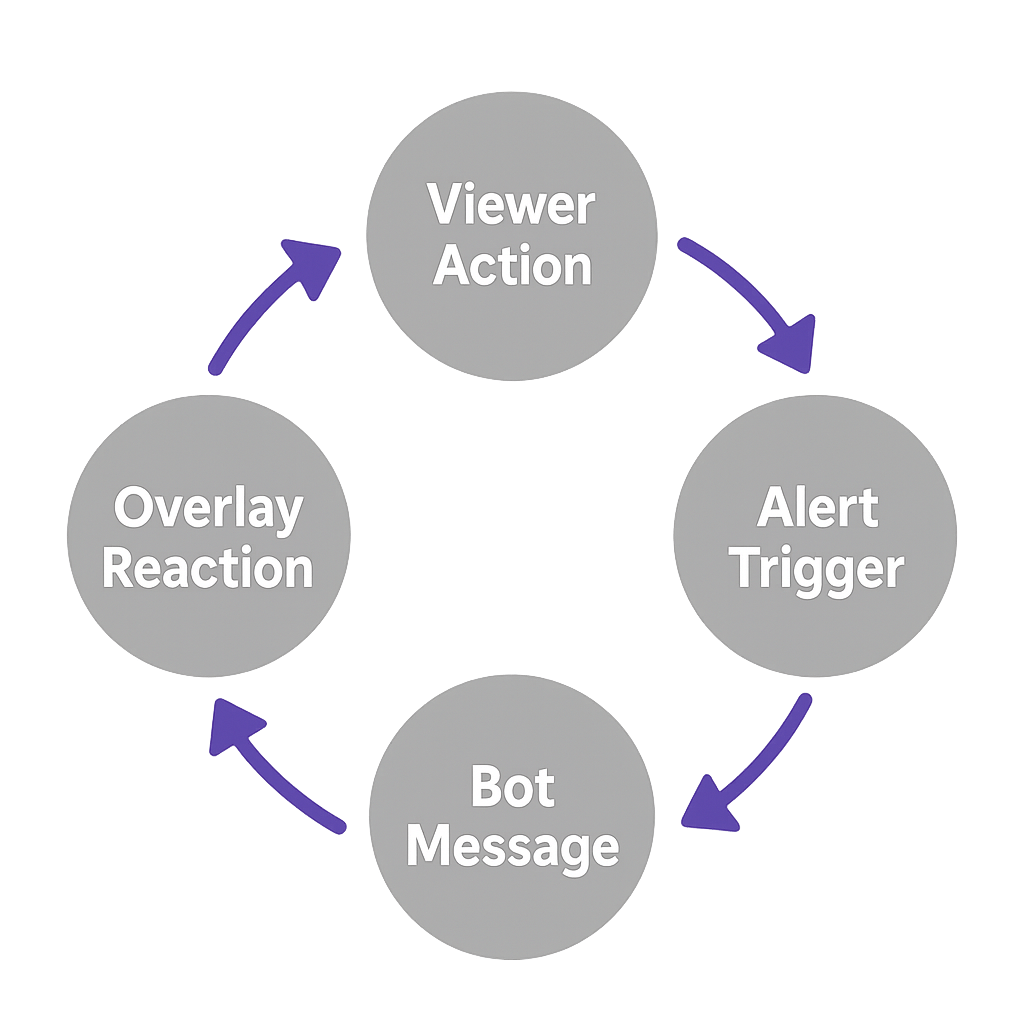
Follower numbers might look impressive, but engagement is what keeps your stream alive.
Twitch’s Creator Camp highlights that channels with active chat hold viewers longer — every time you respond or celebrate someone, you give them a reason to stay.
Stream alerts and chat commands are your connection points. Each pop-up and chatbot reply says, “I see you.” That burst of acknowledgment gives viewers a reason to keep watching.
Ten active viewers can power a stream more than a hundred silent ones — engagement always beats headcount.
Step 2 — Stream Alerts: The Heartbeat of Reactions
Stream alerts are the applause moments of your show — quick visual bursts that react whenever someone follows, subscribes, tips, or joins an event.
Setup
- In OBS Studio or Streamlabs, add a Browser Source.
- Paste your alert URL from StreamElements, Streamlabs, or StreamEngage.
- Match resolution to 1920×1080 and test a few sample alerts.
- Use the StreamElements Overlay Manager to host and manage all alerts in one place.
Quick Setup Checklist
- OBS Browser Source ✔
- Alert URL ✔
- Audio & animation test ✔
- Color match to brand ✔
- Position and timing review ✔
Design Tips
- Use your brand colors for instant recognition.
- Keep animations short (3–5 seconds).
- Place alerts near the top or corners to avoid covering gameplay.
- Choose readable fonts for mobile viewers.
Pro Tip: Short, well-timed alerts feel like applause — quick, satisfying, and perfectly on beat.
Step 3 — Make Alerts Work for You
Alerts shouldn’t just react — they should spark new reactions.
- Welcome new followers with fun visuals or sound effects.
- Highlight support — a tip, sub, or QR scan deserves screen time.
- Encourage participation with StreamEngage QR alerts that trigger animations when viewers complete an offer.
When chat sees names and reactions pop up, it builds social proof: “Others are joining — I want that too.”
Tiny tweaks — rotating alert sounds, seasonal themes, or “rare” surprise animations — keep your stream feeling human, not automated.
Step 4 — Chat Commands That Spark Conversation

If alerts are your heartbeat, chat commands are the conversation echoes that keep it going.
Commands let viewers type short triggers like !support or !schedule and instantly get a reply from your bot — StreamElements Bot, Streamlabs Cloudbot, or Nightbot. Even lurkers can participate with one word.
Quick Tip: Keep responses short, human, and friendly — your bot should sound like a sidekick, not a robot.
Commands lower the barrier for new chatters and help regulars share key info without breaking the flow.
They also make your Twitch chat feel alive even during slower moments — a steady rhythm of interaction.
Step 5 — Automate the Fun
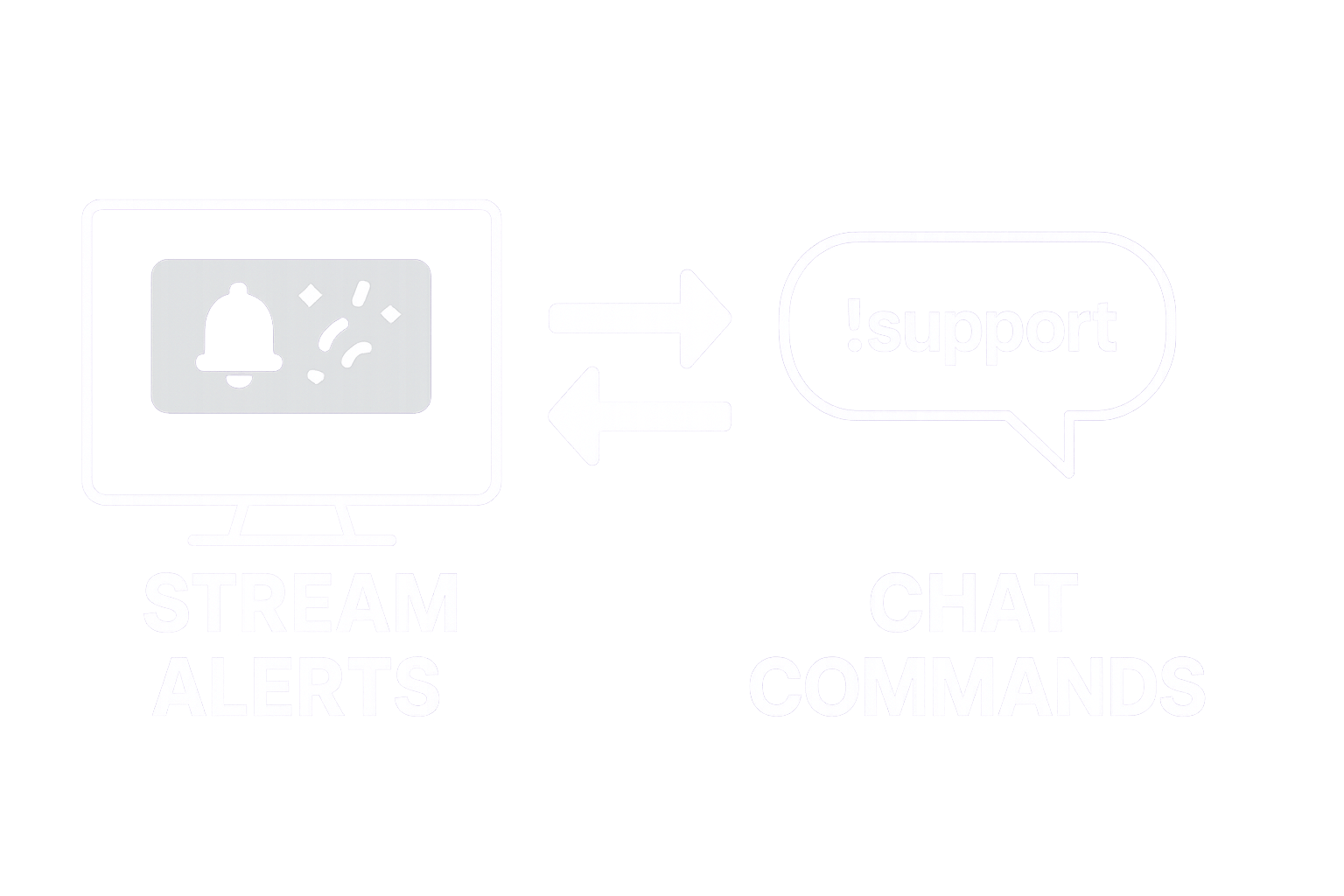
Automation keeps engagement rolling even while you’re focused on gameplay.
Timers, triggers, and overlays work together to keep the rhythm alive.
- Timers: Schedule chat reminders every 10–15 minutes (!support, !discord, or !socials).
- Reactions: When a follow alert fires, have your bot post “Thanks @user for joining the crew!”
- Integration: A StreamEngage QR overlay can appear live on screen while the bot thanks supporters in chat.
When visual alerts and chat replies sync, your stream starts to breathe — the audience acts, the stream reacts, and the energy flows naturally.
Keep balance: 3–4 automated posts per hour feel lively; more can feel robotic.
Automation should support your voice, not replace it.
Step 6 — Keep It Fresh and Interactive
Even the best rhythm needs new notes.
Update alerts and commands regularly so your community doesn’t tune them out.
- Swap alert sounds or visuals monthly.
- Add new emotes or seasonal flair.
- Rotate command jokes or emojis.
- Feature limited-time events (!goal, !charity, or !countdown).
Use StreamEngage leaderboards to gamify participation — viewers love seeing their name rise in real time.
Ask your chat to vote on new alert sounds or command ideas — co-creation deepens connection and keeps your stream personal.
FAQ
1. How long should stream alerts be?
Three to five seconds — short, bright bursts that don’t block gameplay.
2. What are the best starter commands?
!discord, !schedule, !support, and !leaderboard — they cover your community, timing, and engagement basics.
3. Can I use StreamElements and StreamEngage together?
Yes — both load as Browser Sources in OBS. You can layer them seamlessly for alerts and overlays.
4. How often should I update alerts and commands?
Monthly is ideal — long enough for consistency, short enough to stay fresh.