


Your overlay is the stage of your stream.
Before you speak or play, it tells viewers who you are and how serious you are about your craft.A polished overlay builds trust and keeps people watching.
This step by step guide shows you how to design professional looking Twitch overlays and OBS overlays using free or affordable tools and how to add interactive StreamEngage and StreamElements overlays that boost engagement and make your stream look truly professional.
Step 1 — Plan Your Layout
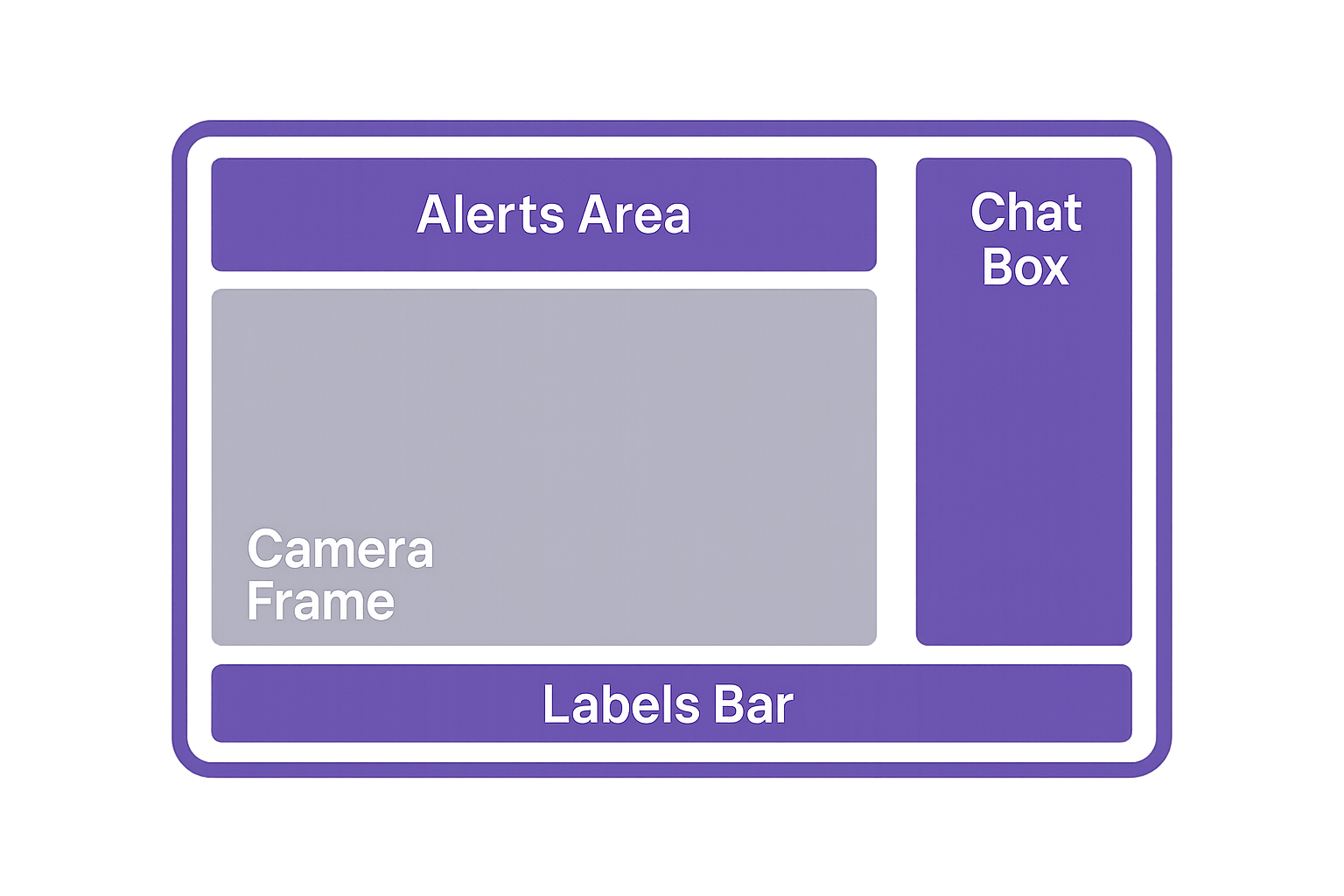
Sketch your screen before you build it.Decide where the camera, chat, alerts, and labels live — and why. Every element should have purpose and breathing room. Cluttered overlays make streams look messy and hard to watch.
Think of white space as silence between notes: it lets everything else shine.
💡 Pro Tip: In OBS Studio, sources higher in the list appear on top. Keep your webcam and alerts above decorative layers for clarity.
Step 2 — Choose a Color Palette That Matches Your Brand
Color speaks before you do.Pick one main, one accent, and one neutral tone. Use tools like Coolors or Adobe Color to find the perfect combination and test visibility on light and dark backgrounds.
Keep your color palette consistent across Twitch panels, banners, and overlays — it builds instant recognition and helps establish your brand identity.
Step 3 — Pick Your Overlay Style: Static, Animated, or Hybrid
There are three core overlay styles:
- Static overlays (PNG): clean, simple, and easy on performance.
- Animated overlays (WEBM): add movement and life through subtle motion or glowing accents.
- Hybrid overlays: the most flexible — static base with gentle animated highlights.
Animation should guide attention, not compete with gameplay.
Short, looping animations (under 10 seconds) look smoother and prevent lag.
⚙️ Quick Tip: Overlays that move too fast can overwhelm new viewers. Keep your motion calm and consistent.
Step 4 — Add Alerts, Labels, and Panels
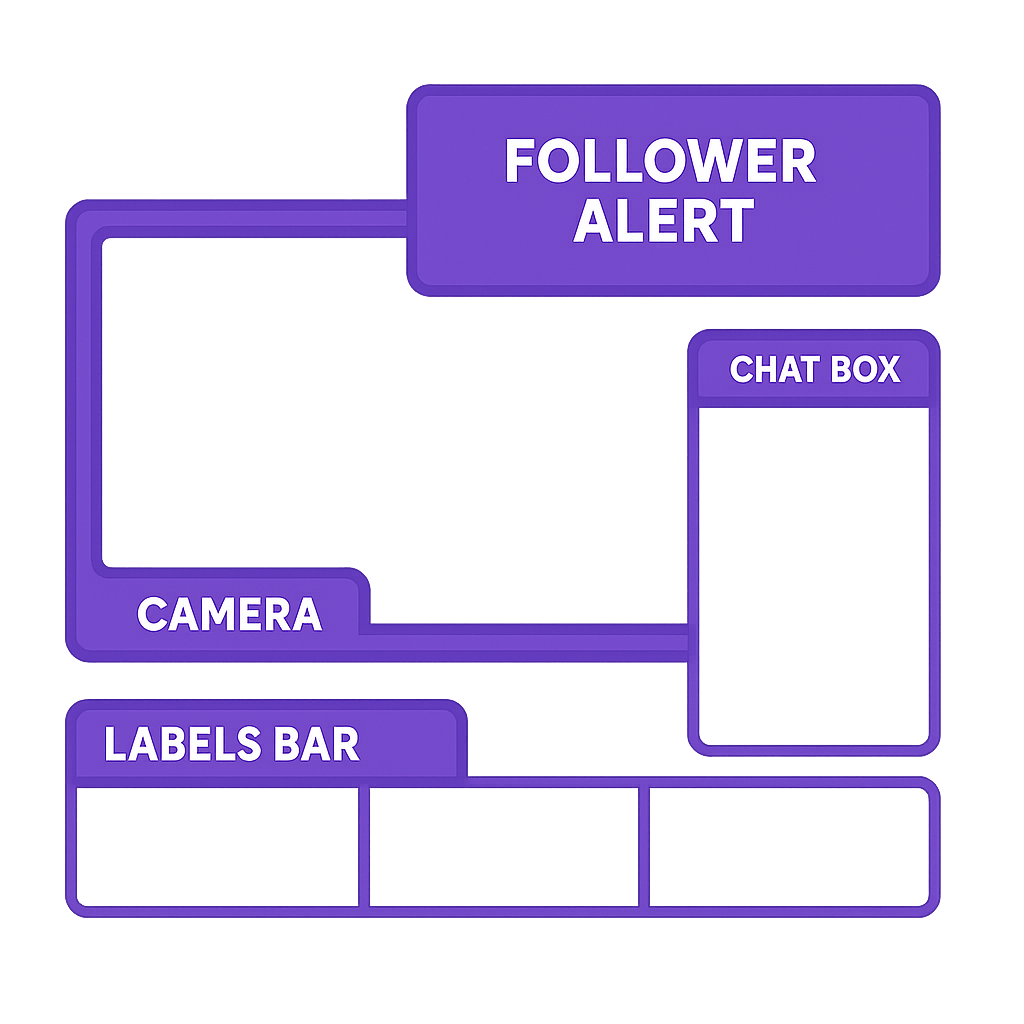
Alerts are how the viewer joins the show.
In OBS or Streamlabs overlays, add them as Browser Sources. Paste your alert URL from StreamElements, Streamlabs, or StreamEngage alerts, and set the resolution to 1920×1080.
Start with the basics:
- Follower alert – celebrates new supporters.
- Tip or donation alert – encourages interaction.
- Recent event labels – highlight community appreciation.
StreamEngage overlays add free-to-tip banners and QR codes that let viewers support you without spending a dime — the perfect mix of engagement and accessibility.
Step 5 — Test and Adjust in OBS or Streamlabs
Before going live, rehearse.Record a 30-second test clip and watch it like a new viewer. Are your text and icons sharp? Does anything overlap gameplay?
Match your browser source to your canvas (1920×1080 for most).
If something looks off, check your scaling filters and source order.
Running short private tests saves you the embarrassment of a cluttered or broken layout mid-stream.
Step 6 — Add Interactive Elements
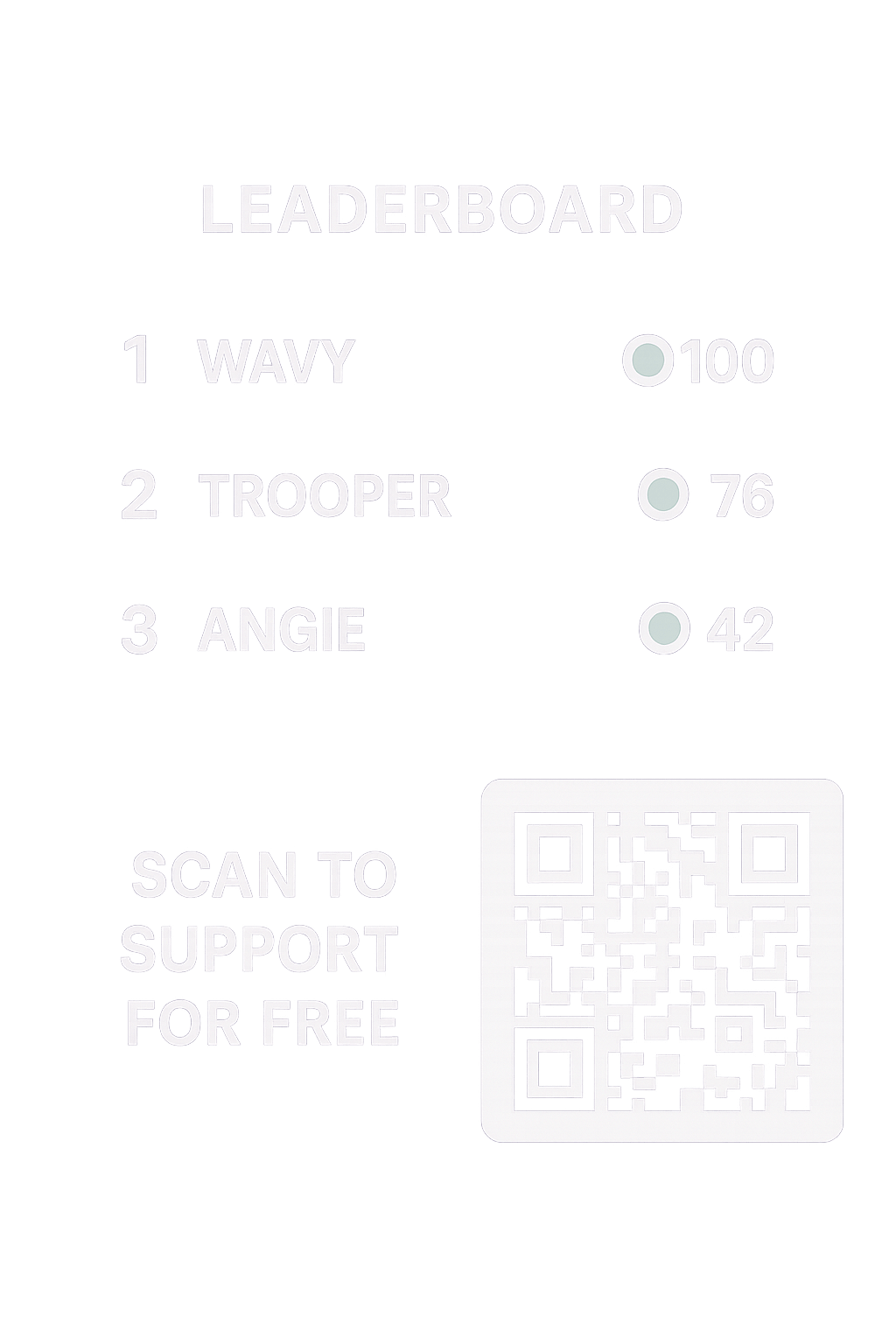
Static overlays tell your story. Interactive overlays pull your viewers into it.
Add engagement features through StreamEngage overlays, such as:
- QR tips – viewers scan and support for free.
- Leaderboards – display top contributors automatically.
- Twitch overlay widgets
All of these can be added via the Browser Source just like your alerts.
Keep placement consistent and movement subtle so they enhance, not distract.
Step 7 — Keep It Consistent Across Scenes
Professional streams look and feel cohesive.Use the same layout and color palette for your “Starting Soon,” “Live,” “BRB,” and “Ending” scenes.
Duplicate your main scene in OBS, rename it, and tweak the backgrounds instead of building from scratch.
Consistency tells viewers they’re watching a channel that cares about presentation.
Step 8 — Pro Tips & Twitch Overlay Ideas for Long-Term Success
A few easy habits will keep your overlays looking fresh:
- Name your files clearly. “MainCamOverlay.png” beats “overlay-final-final3.png.”
- Back up to the cloud. One lost file can ruin a layout.
- Refresh visuals seasonally. Update colors or stingers a few times a year.
- Watch analytics. If your watch time drops, your overlay might be too busy.
- Test monthly. Browser or OBS updates can break alerts or animations.
FAQ
1. What’s the ideal overlay resolution for Twitch?
Design at 1920×1080 (Full HD). OBS will downscale cleanly if you stream at 720p.
2. Animated or static overlays?
Hybrid designs work best — static base, animated accents.
3. Best free overlay editor?
Photopea or StreamElements Overlay Manager — both browser-based and easy to use.
4. How do I design overlays without experience?
Use pre-made templates from Canva, NerdOrDie, or Visuals by Impulse.
5. What’s the difference between StreamElements and StreamEngage overlays?
StreamElements overlays focus on style and customization. StreamEngage overlays focus on engagement and monetization — letting viewers support you through free, interactive actions.
Final Thoughts
Your overlay is the set design of your show — it shapes the viewer’s first impression before your voice or gameplay do.
With free tools and thoughtful design, you can craft stream overlays that look professional, express your brand, and invite your audience to take part.
When you’re ready to elevate engagement, layer in StreamEngage overlays — QR codes, banners, and leaderboards that make your stream not just beautiful but rewarding.