


If your chat feels quiet, it doesn’t mean your stream is failing — it usually means your viewers don’t have clear ways to interact. Streamlabs Chatbot fixes that. With the right commands, timers, and responses, you can turn passive viewers into active chatters and keep your stream feeling alive. This guide shows you exactly how to set up Streamlabs Chatbot commands and use them to power real engagement.
What Is Streamlabs Chatbot and How Does It Work?
Streamlabs Chatbot is a standalone desktop tool that connects directly to your Twitch channel. Once activated, it listens for triggers viewers type and responds instantly. It handles:
- Custom & default commands
- Timers
- Loyalty points and viewer ranks
- Mini-games (including the popular dice game)
- Song requests
- Scripts for advanced features
Think of it as your automated co-host — the one who handles repetitive tasks so you can focus on creating moments on stream.
Why Streamers Use It
- Automation saves energy
- Commands spark engagement
- Moderation becomes smoother
It’s simple, but it makes your whole channel feel more alive.
How to Set Up Streamlabs Chatbot
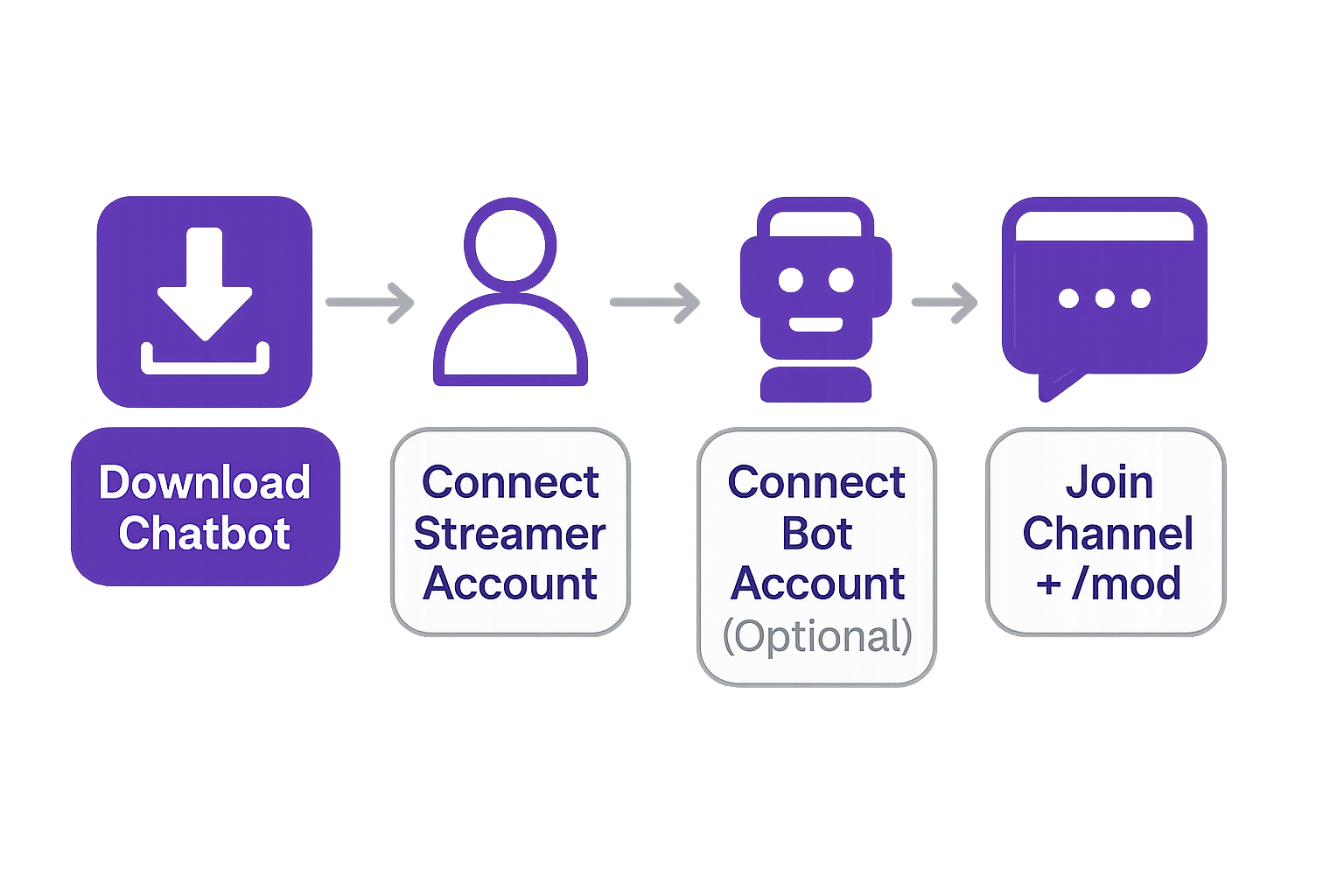
Step 1: Streamlabs Chatbot Download
Grab the installer from the official Streamlabs page.
Step 2: Connect Your Accounts
You’ll log in twice:
- Your streamer account
- An optional bot account like “YourNameBot”
Step 3: Join Your Channel
Make sure the Channel Name field contains your Twitch username.
Step 4: Make the Bot a Mod
/mod YourBotName
Fixing Common Setup Issues
If something breaks, it’s usually one of these:
- Set to whispers instead of chat
- Cooldowns blocking commands
- Wrong channel name
- Expired OAuth token
- Script requirements not met
If you think, “Streamlabs Chatbot not working,” it’s almost always one of these simple fixes.
Understanding Chat Commands
Commands are short triggers like !discord. Streamlabs includes defaults, but you’ll build most of your identity through custom commands.
Default Commands Worth Enabling
- !uptime
- !followage
- !rules
- !discord
- !watchtime
- !so
How to Create a Custom Command
- Go to Commands → Custom
- Click Add Command
- Fill out the name, response, user level, cooldown, cost, and aliases
- Save → Test it in chat
Best Streamlabs Commands
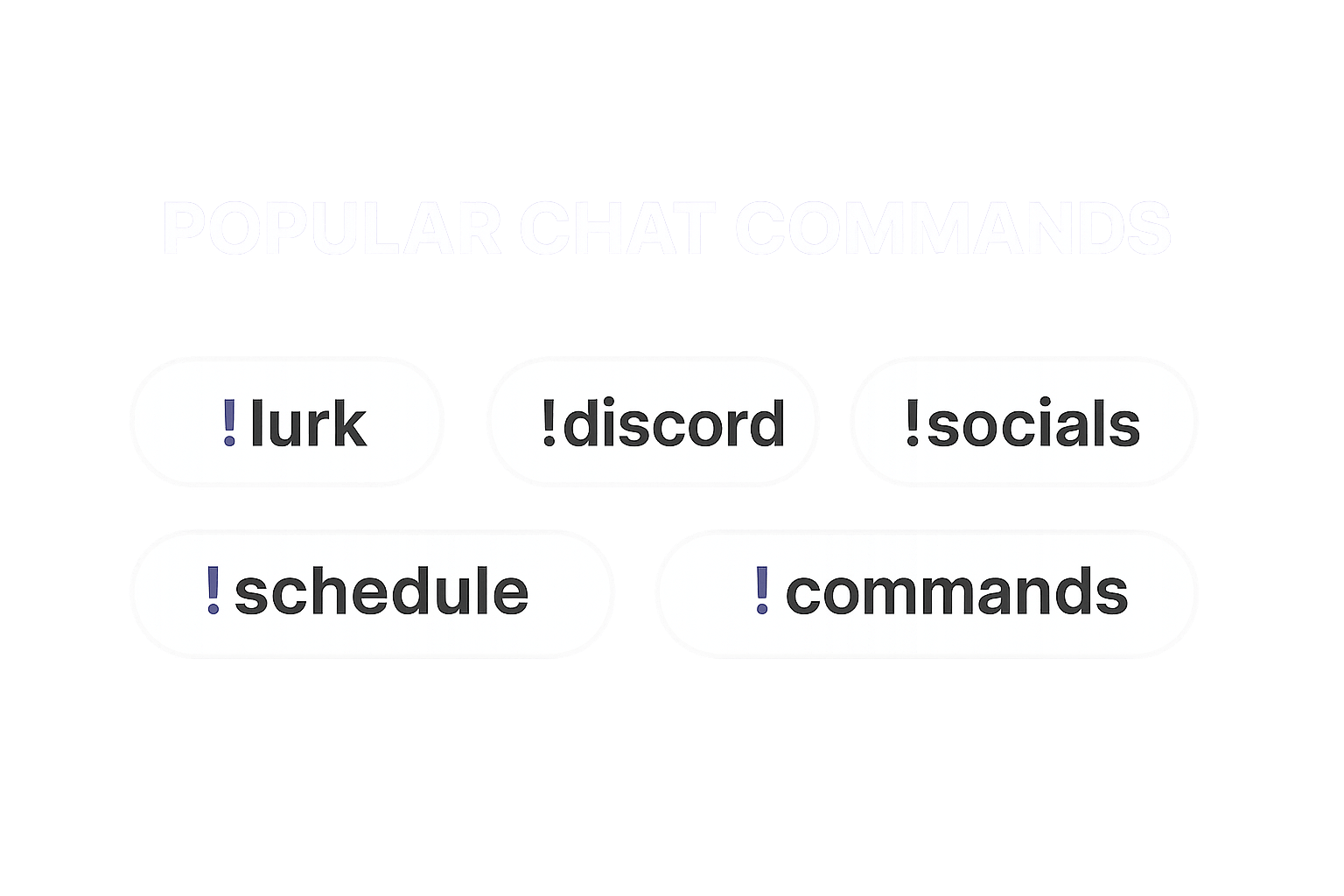
A simple starter set:
- !lurk — lets viewers quietly support
- !socials — one message for all your links
- !discord — easy community invite
- !schedule — your streaming hours
- !vod — link to past broadcasts
- !commands — list of everything available
These form a clean Streamlabs Chatbot commands list.
Quick Command Examples
Command Examples
- !hello — greets the viewer using $user
- !dice — rolls a random number
- !discord — your server link
- !socials — shares all your links
- !rules — posts your chat rules
These examples make your chat feel active even when things are quiet.
Using Variables (Easy, No Coding Required)
Variables personalize your commands:
- $user — viewer’s name
- $points — their loyalty points
Example:
“Hey $user, glad you’re here — make yourself at home.”
Streamlabs Chatbot Timers
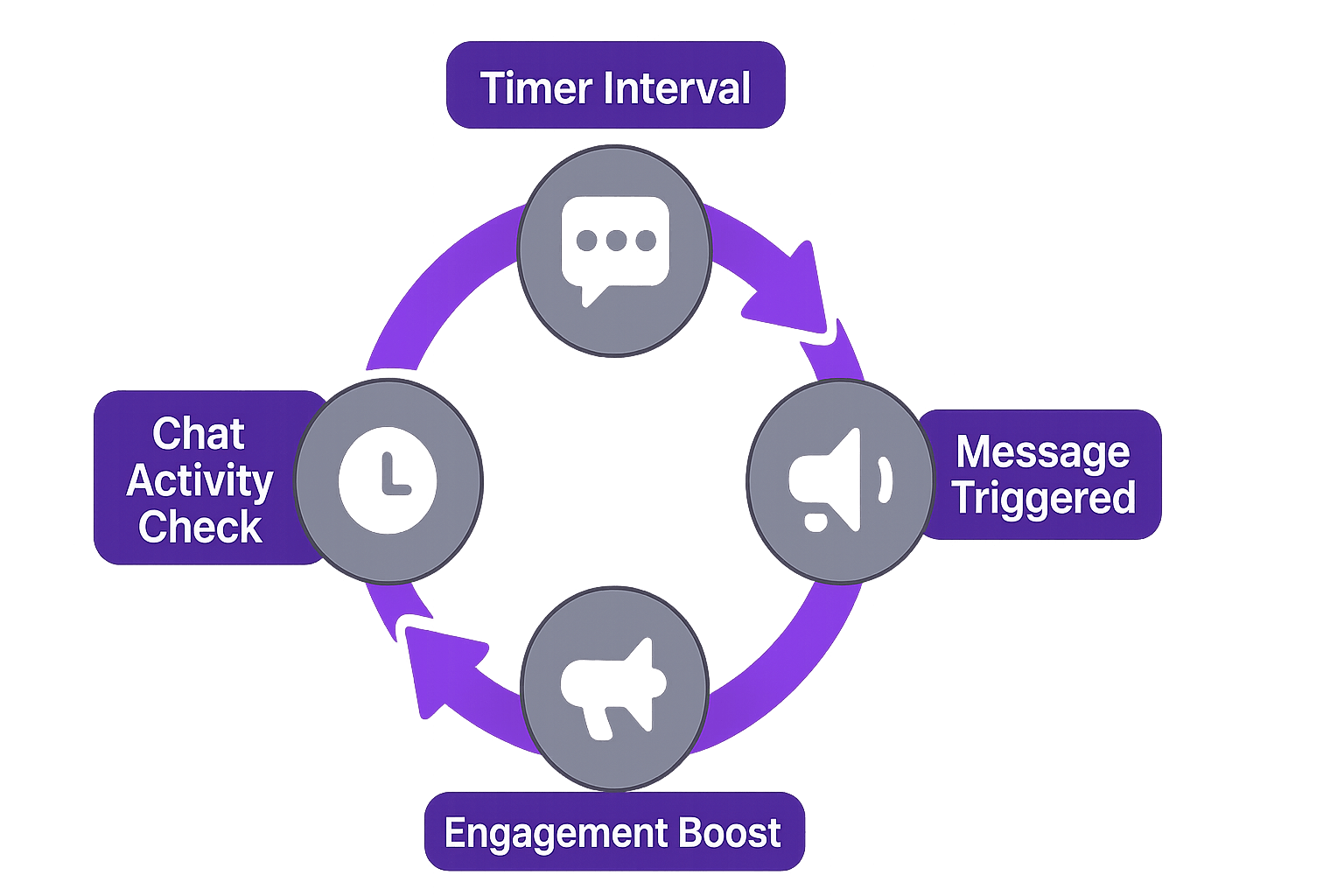
Timers send messages at set intervals so Chat never feels empty.
Best Uses
- Rotate social links
- Hydration/stretch reminders
- Simple engagement prompts
Avoiding Spam
- 10–20 minute intervals
- Require minimum chat lines
- Rotate multiple timers
Streamlabs Chatbot Loyalty Points
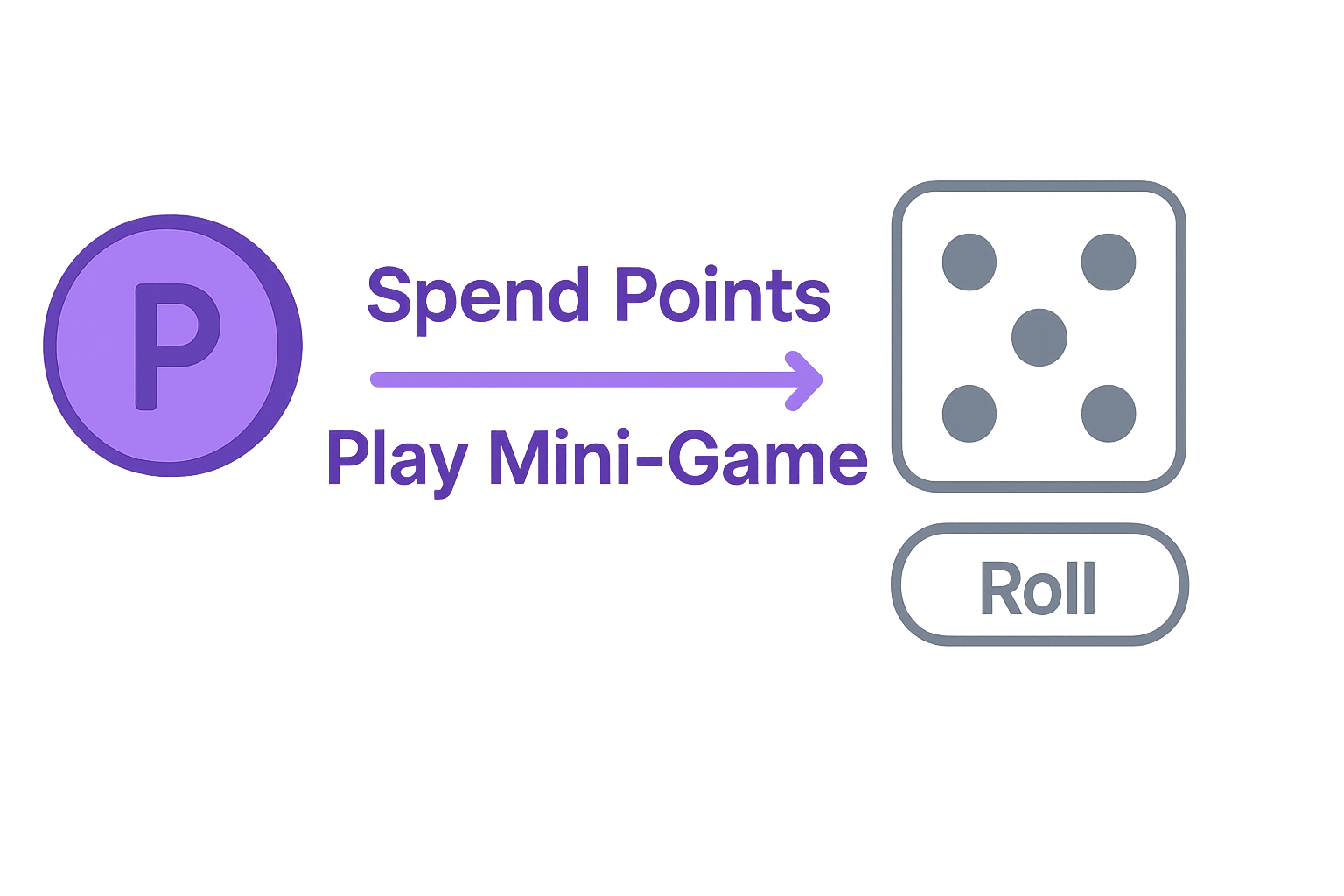
Viewers automatically earn points for sticking around.
With points, viewers can:
- Enter giveaways
- Trigger special commands
- Use on-stream interactions
- Play mini-games — including the Streamlabs Chatbot dice game
Great for cozy streams, background vibes, and keeping passive viewers engaged.
Streamlabs Chatbot Scripts
Scripts add deeper functionality:
- Countdowns
- Quotes
- Random facts
- Games
- API interactions
Most scripts are plug-and-play. Install Python 2.7, drop the script in the folder, refresh, and configure.
Troubleshooting: Why Your Commands Aren’t Working
Quick checks:
- Is the bot in your channel?
- Is the bot a moderator?
- Are permissions too strict?
- Is there a cooldown?
- Does the command require points?
- Did the OAuth token expire?
- Wrong channel name?
If you look up “Streamlabs Chatbot not working,” these fix almost everything.
Best Practices for Command Organization
- Keep names short
- Group commands by purpose
- Use aliases for spelling variations
- Delete unused commands monthly
- Keep responses tight
- Don’t overload your chat with meme commands
A clean command system makes your stream feel intentional.
FAQ
How do I add a custom command?
Commands → Custom → Add Command → Save.
Why isn’t my bot responding?
Check mod status, channel name, permissions, cooldowns, connection, and points.
What are the best Streamlabs commands?
!lurk, !discord, !schedule, !socials, !rules, !uptime.
Do commands need loyalty points?
Only if you assign a cost.
Conclusion
Commands are tiny, but they change everything. They spark conversations, guide new viewers, and make your channel feel active even when you’re deep into gameplay. Start with a few essentials, build from there, and let the bot handle the small stuff so you can focus on what you love: creating unforgettable moments live.