


A full streaming setup isn’t the only way to grow on Kick.
With the right mobile tools, you can broadcast IRL moments, Q&As, or travel adventures straight from your phone — and still look professional.
This guide walks you through how to stream on Kick from your phone, how to make it look great, and how to keep viewers engaged anywhere.
Step 1: Choose How You’ll Stream
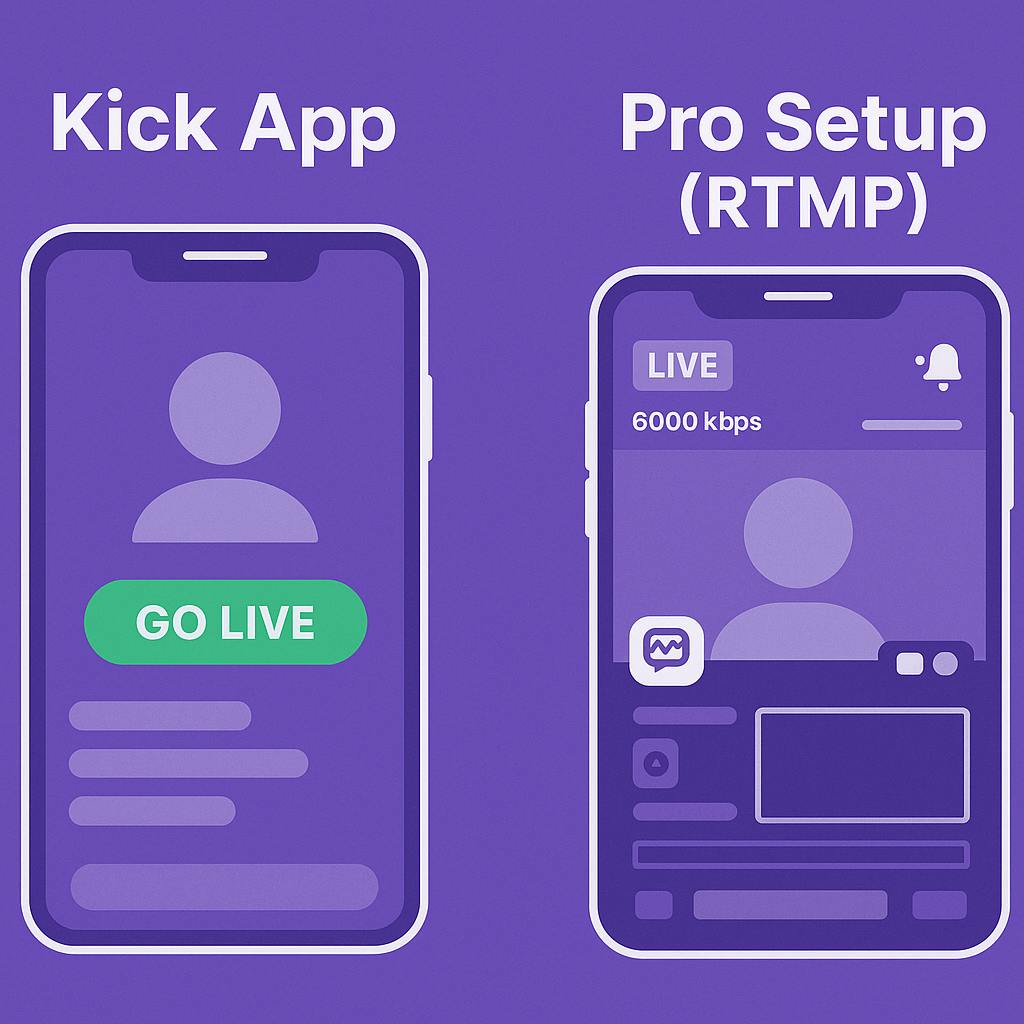
Kick offers two easy options: the built-in app or a pro mobile setup with Streamlabs or Prism Live.
Option 1 — Stream with the Kick App
For fast, casual streaming:
- Download the Kick app on iOS or Android.
- Tap the camera icon to go live.
- Allow camera and mic access.
- Set your title and category under Creator Dashboard → Channel.
- Hit Go Live.
That’s all. The interface is clean, and your chat appears instantly — perfect for IRL streams or quick hangouts.
Best for: First-time streamers or spontaneous updates.
Option 2 — Streamlabs Mobile or Prism Live (Pro Setup)
For overlays, alerts, and advanced control:
- In Kick’s Creator Dashboard, copy your Stream URL and Stream Key.
- Add a Custom RTMP destination in Streamlabs or Prism.
- Paste your Kick details.
- Insert your StreamEngage overlay link for alerts or QR codes.
- Tap Go Live.
Now you’ve got OBS-level flexibility from your phone.
Tip: Streamlabs browser overlays show visuals only — they can’t be clicked or interacted with.
Best for: IRL creators, vloggers, and streamers who want full branding anywhere.
Kick vs Twitch Mobile (Quick Look)
- Twitch: Stable but restrictive — no overlays, limited bitrate options.
- Kick: Fewer limits, sharper quality, easier to start.
If you want freedom and simplicity, Kick’s mobile tools make it easy to go live fast.
Step 2: Customize Your Stream
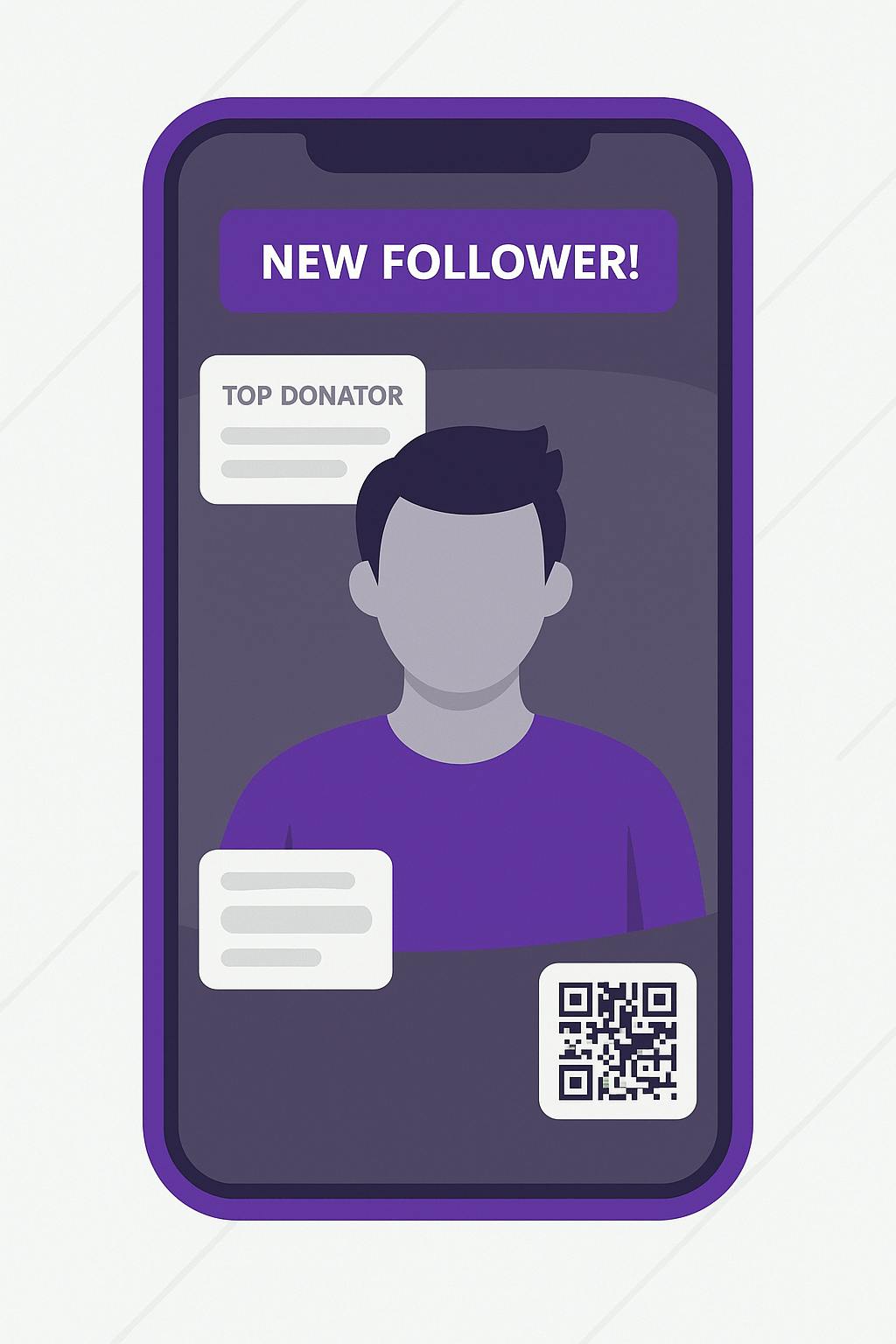
Add simple upgrades that make your mobile stream look and sound professional.
StreamEngage Overlays
Add your StreamEngage link in Streamlabs or Prism to display:
- Alerts and offers
- Viewer leaderboards
- QR codes for tips and subscriptions
Even from your phone, you can create the same viewer interaction and income potential as a full desktop setup.
Camera & Layout Tips
- Use the rear camera for higher image quality.
- Keep the lens eye-level and steady (tripod helps).
- Pick simple backgrounds — focus on you, not clutter.
- Move chat boxes if they block your face.
Audio
Use a plug-in or Bluetooth mic for crisp audio — viewers forgive average visuals, not muffled sound.
Step 3: Engage Viewers While You Stream
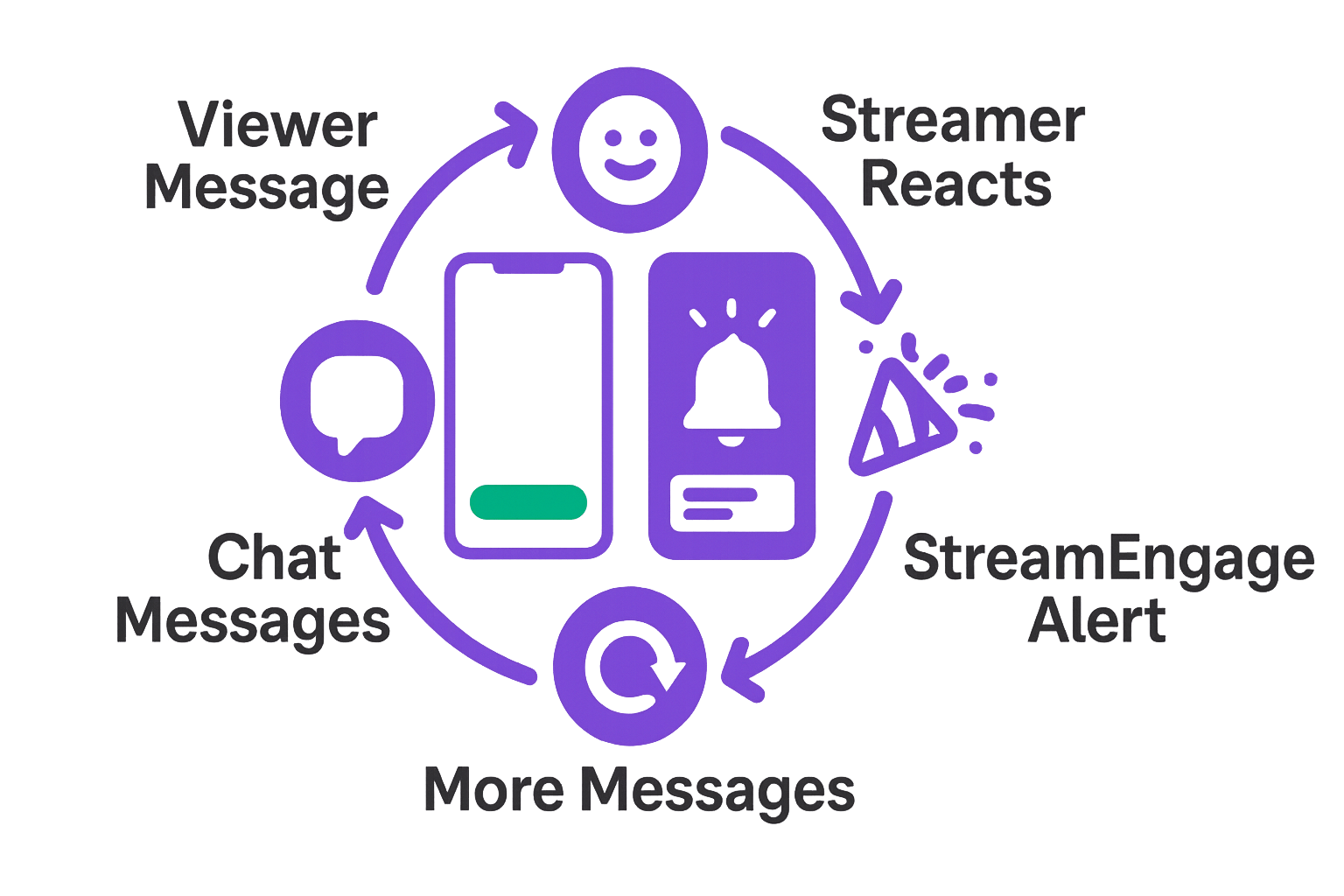
Your phone is your stage — keep it conversational and interactive.
Kick Chat Commands
- /title — update your stream title live
- /slow on — slow chat down during spikes
- /followonly or /subonly — manage access
- /mod [user] — promote trusted helpers
Chat Tricks That Work
- Ask fun, fast questions like “Where are you watching from?”
- React to messages in real time.
- Use StreamEngage alerts to react automatically when tips or offers trigger.
On mobile, authenticity beats production value every time.
Step 4: Use Mobile Streams to Grow
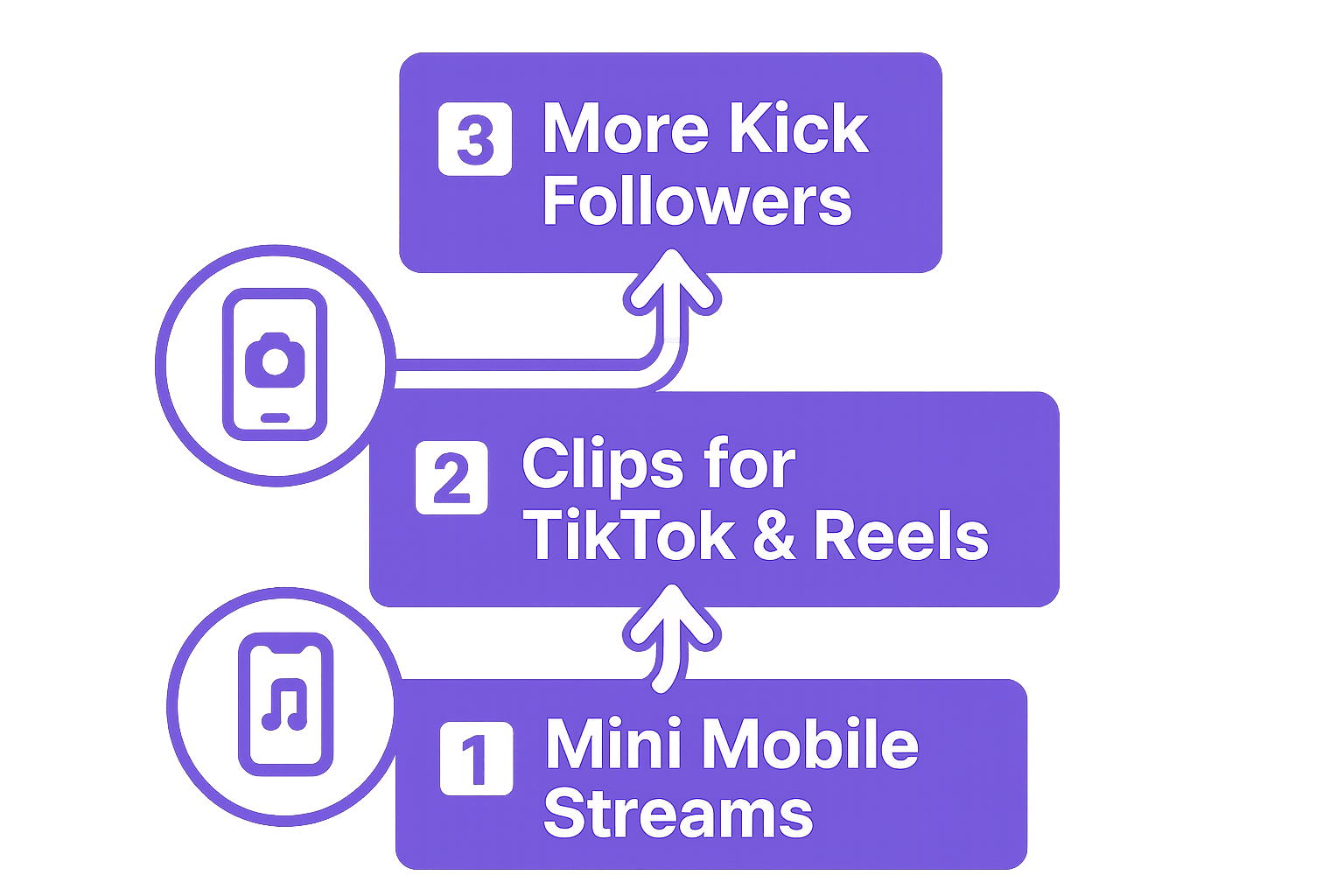
Your phone isn’t just a camera — it’s a discovery tool.
Mini-Streams for Visibility
Short 10-minute sessions keep your channel active in Kick’s live feed and help the algorithm notice you.
Consistency matters more than length.
Repurpose Everything
Kick saves your VODs automatically:
- 7 days for non-verified streamers
- 30 days for verified channels
Download your best moments and post them on TikTok, Reels, or Shorts — every clip can funnel new viewers to your Kick profile.
Monetize on the Move
With StreamEngage overlays, viewers can support you instantly through free offers or subscriptions.
You stay authentic, keep streaming naturally, and still earn in real time.
Step 5: Quick Fixes for Common Issues
Lag or Frame Drops
Lower bitrate, switch networks, and close background apps.
Overheating or Battery Drain
Lower brightness, stream in shade, use a power bank, and limit session length to under two hours.
App Crashes or Disconnects
Enable Streamlabs Disconnect Protection and turn on Do Not Disturb before going live.
VOD Storage
Kick saves VODs automatically — download them early if you plan to edit or repost.
Conclusion
Kick mobile streaming lets you stay connected anywhere — no studio required.
Add overlays through StreamEngage, keep chat active, and turn every casual stream into a growth opportunity.
Your next big moment might start with one tap: Go Live.
Quick FAQ
Can I switch cameras while live?
Yes — Streamlabs and Prism support front/rear switching mid-stream.
Does Kick’s app support overlays?
Not yet. Use a third-party RTMP app like Streamlabs or Prism.
What’s the best mobile bitrate?
Around 2,800 Kbps at 720p 30 FPS.
How long are Kick VODs saved?
7 days for non-verified users, 30 days for verified creators.